Introduction
The purpose of this blog post is to provide not only a slightly more in depth look at FNames and GameplayTags but to also provide the information together in a single place so that it is easier to grasp the entire context of each system and how they interact with each other.
I’m going to begin with a look at FNames and how they work and then move onto GameplayTags and how they are built on top of FNames, I will also provide some tips and tricks for using them in your projects.
Feel free to jump to the section you are interested in, I will provide a TLDR at the end of each section for those who are in a hurry or just want a quick recap, but if you have limited knowledge, have not read this before or want to make sure there isn’t anything missed then I suggest reading it first the whole way through as it was intended.
FNames
UPROPERTY(EditAnywhere)
FName MyName;
FNames are Unreal’s solution to cheap and efficient comparisons of immutable strings in a way that can be compared and passed around quickly due to each unique string only being stored once in a global pool.
They work by first taking a string of characters and hashing its contents using a CityHash algorithm, but that hash is only used to find (or insert) the string in a global pool called FNamePool,
what the FName actually holds onto is the location of that entry in the pool (a block/offset handle), not the hash itself.
There is a globally defined macro called WITH_CASE_PRESERVING_NAME that allows for case preservation in FNames, this is because by default FNames are non case
preserving unless you are building with WITH_EDITORONLY_DATA (so the editor and programs).

Any builds that have WITH_EDITORONLY_DATA will have WITH_CASE_PRESERVING_NAME enabled by default, this is because the editor wants to visibly record and show the spelling of Foo and foo, cooked game builds don’t have editor only data so it’s already off there and you aren’t paying the memory for it,
the only case where you would want to turn it on yourself is when you want to convert back from an FName to a string in a lossless manner.
This is NOT supposed to help differentiate between "Foo" and "foo" in a comparison as the DisplayIndex (see below) is not taken into account there.
// inside of FNamePool
#if WITH_CASE_PRESERVING_NAME
FNamePoolShard<ENameCase::CaseSensitive> DisplayShards[FNamePoolShards];
#endif


// Inside of FName
#if WITH_CASE_PRESERVING_NAME
/** Index into the Names array (used to find String portion of the string/number pair used for display) */
FNameEntryId DisplayIndex; // 4 bytes in size, FNameEntryId is a wrapper for a uint32 with some utility functions
#endif
An FName consists of 2/3 uint32’s:
ComparisonIndex- This is the location of our string’s entry in the global FName pool (it is NOT the hash, the hash is only used to find the entry).Number- This is a unique int that is associated with the string, more on this below but it allows us to reuse FNames without them being equal to each other, i.e.Foo_1andFoo_2are not equal to each other but both have the sameComparisonIndex.DisplayIndex- This is the optionally compiled out value that is responsible for tracking our case sensitive names index in the global FName Pool (only ifWITH_CASE_PRESERVING_NAMEis enabled).
Let’s take an example of constructing some FNames and see what would happen, note that I won’t be discussing DisplayIndex anymore as it’s only relevant for going back to a string with ToString() in most cases:
FName Name1 {"Hello"};
FName Name2 {"Hello_1"};
This results in Name1 having a ComparisonIndex pointing at "Hello" in the pool and a Number value of 0, this might seem pretty obvious but how about Name2?
Name2 is going to contain the same ComparisonIndex value as Name1 since they both have the exact same string up until _ from there Unreal will
parse the string and as long as no invalid characters are found and it’s less than or equal to 10 total max digits (and the value is below MAX_int32), then the Number value will now store the number given plus one,
otherwise Unreal would store the string with the _ inside of it, for example "Hello_032" is stored as "Hello_032" with a Number value of 0 because _032 is an invalid start to a Number, more on
the invalid characters later but here is the parsing code from epic, we see how it only counts digits that start with 0 if its the only digit.
Parsing Code
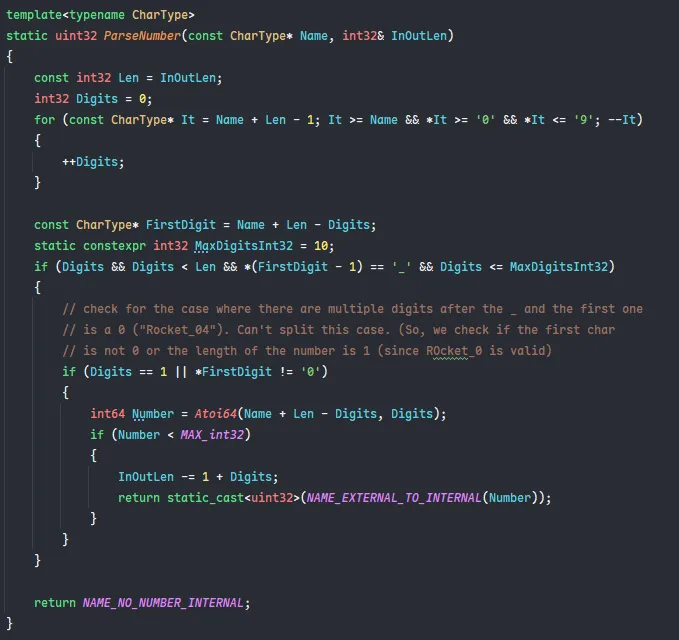
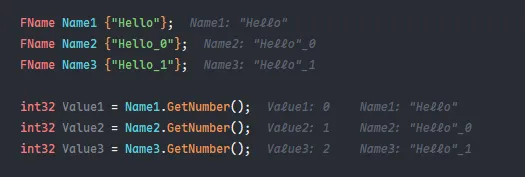
So I said a lot, but essentially it means that if we supply a valid number in the name then it’s going to store the number we gave plus one, so Name2 will have a Number value of 2,
this may seem unintuitive but it is due to Unreal having 0 represent not used, so if you were to supply "Hello_0" for example Unreal would make it contain a 1 internally to represent it is in fact used.
Here is a screenshot of Rider showing me the inline values, the inline debugger is smart enough to know it should display the Number minus one for
the inline displayed value but we can see by calling GetNumber() it returns the actual internally stored value.
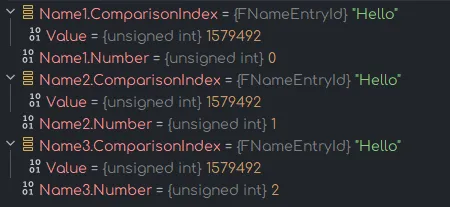
Here is a watch window with the values expanded, showing the important information, we can see they all share the same ComparisonIndex but have different Number values.
If we were to take our FName and convert it back to a string, as long as our Number int has a non 0 value then our resultant string will contain the _ character and the number, otherwise it will not be included in the string.
FName Name1 {"Hello_1"}; // Stored internally as "Hello" and 2
FName Name2 {"Hello"}; // Stored internally as "Hello" and 0
FString Name1Str = Name1.ToString(); // Results in "Hello_1"
FString Name2Str = Name2.ToString(); // Results in "Hello"
Unreal takes great advantage of the Number, for example in UObject instances, which is why in the debugger you often always see the MyObjectName_1 or MyObjectName_2 etc, this is because Unreal is taking advantage
of the Number to give you a unique name for each object.
Construction of an FName
Let’s follow the construction of an FName:
-
- Start by creating a basic FName like so
FName MyName {"FooBar"};
- Side Note: This constructor takes a second parameter which is an
EFindNameenum that can be eitherFNAME_FindorFNAME_Add.FNAME_Addwill add the name to the table if it is not found, this is the default behaviour.FNAME_Findwill return a 0 orNAME_Noneif the name is not found.
- Start by creating a basic FName like so
FName::FName(const ANSICHAR* Name, EFindName FindType)
	: FName(FNameHelper::MakeDetectNumber(MakeUnconvertedView(Name), FindType))
{}-
- Here we can see a call to
FNameHelper::MakeDetectNumber(at least with this constructor, FName has a lot, I recommend checking them out) which is what actually handles making the FName and parsing for that_character.
- Here we can see a call to
-
FNameHelper::MakeDetectNumberwill then callParseNumber()which returns the number plus one like discussed earlier but if it’s not used or can’t be used it returns 0.
-
- Finally we eventually end up at
MakeInternal()which is going to first find or create a new entry in the global FName pool for our string and then is going to construct a return value FName with theNumberset to the parsed number and theComparisonIndexset to the pool location of the string.
- Finally we eventually end up at
Caveats
An FName’s ComparisonIndex can change between launches of the engine even if no new names are added, for example, here I launch the engine 5 times with making no modifications at all,
just running and quitting and we will see how the ComparisonIndex changes, here is the variable I will be inspecting every launch
FName Name1 {"MyNonPreExistingTag"};
and here is the results
1579582 // Run 1
1579540 // Run 2
1579553 // Run 3
1579564 // Run 4
1579593 // Run 5
This means that we cannot reliably network the index between clients (Unreal sends them as strings) or serialize the FName directly, the ComparisonIndex is just where the entry landed in the pool, so the order in which strings are added into the pool has a direct effect on their ComparisonIndex with one exception:
EName, ENames are an engine hardcoded mapping to constants and the ones up to MAX_NETWORKED_HARDCODED_NAME (410) can reliably be networked between clients as just an integer, but you cannot go extending them without engine modifications and this isn’t usually required since
Gameplay Tags are the solution to cheap networked FName like tags.
Let us just go over a couple more examples to make sure we understand how they work and see some other constructors that are available to us:
// Returns an FName of "He" with Number of 0
// because the first argument supplies the length of the string to account for
FName LimitedName {2, "Hello_1234567890"};

FName Name1 {"Foo_1"}; // Returns an FName of "Foo" and Number of 2
FName Name2 {"Foo_0"}; // Returns an FName of "Foo" and Number of 1
FName Name3 {"Foo"}; // Returns an FName of "Foo" and Number of 0


// Returns an FName of "Foo" and Number of 1, but careful, the number you pass here is
// the INTERNAL value (no plus one is done for you) so this prints as "Foo_0"
FName Name4 {"Foo", 1};
// If you actually want "Foo_1" then convert it yourself, this gives a Number of 2
FName Name4External {"Foo", NAME_EXTERNAL_TO_INTERNAL(1)};
FName CheapConstruction { Name4 }; // Cheap to copy around and construct, only around 8 bytes in normal builds

// Both result in an invalid NONE index because we cannot have an empty string as an FName
FName Name5 {"", 4};
FName Name6 {"_4"};
Quick TLDR/Recap and some extra notes about FNames
- FNames consist of 2-3 parts;
ComparisonIndex,NumberandDisplayIndex(DisplayIndexis stripped if not usingWITH_CASE_PRESERVING_NAME). - FNames are case insensitive, meaning
"Foo"and"foo"will both be equal to each other, even with case sensitivity preserved. - FName’s equality operator
==is defined to compare viaToUnstableInt()which treats its own memory as an uint64FMemory::Memcpy(&Out, this, sizeof(uint64));this means no matter if we are preserving case sensitivity or not the comparison will be the same and not take theDisplayIndexinto account. - When you compare two FNames you are comparing the pool location of the strings and not the string itself (just two ints -
ComparisonIndexandNumber, extremely cheap!). FName A {"Foo"};is a lot more expensive to construct thanFName B { A };because we are member wise copying A’s int values as opposed to A needing to hash its string and look it up in the pool to first get its values.- FNames are stored in a global name pool called
FNamePool, if you have a lot of unique FNames you will be using more memory but you can mitigate this by taking advantage of theNumberint associated with everyFName. - FNames are extremely cheap to copy and pass around, it’s only
8to12bytes depending on if case sensitive preservation is enabled. - The first entry of a string in the pool is how the string will be stored, subsequent entries that match will not be stored (unless preserving is enabled but even then it doesn’t affect the
ComparisonIndexbut just itsDisplayIndex), this means that if"FoOOo"is registered before"Foooo"then when the second FName attempts to register it will be told it already exists in the pool and it will continue to use that same entry, this means later if you tried to convert back to a string and did not have case sensitivity enabled you would get"FoOOo"back no matter what you supplied. Basically, the first instance to be registered in the table will continue to be used so be wary of this. - You can enable case preservation in builds that don’t have it (cooked game builds) by adding
GlobalDefinitions.Add("WITH_CASE_PRESERVING_NAME=1");to your Target.cs file (not your Build.cs, it’s a TargetRules thing) but it needs a unique build environment, so in practice that means a source engine build. - The string is hashed using
CityHash(a hashing algorithm designed to be quick and deterministic) but only to find or insert it in the pool, the hash is not what the FName stores. - FNames are not reliable to network between clients or serialize directly, the
ComparisonIndexcan change between launches of the engine even if no new names are added, the only exception to this are the hardcoded ENames up toMAX_NETWORKED_HARDCODED_NAME(410). - The max size for an FName is
1023characters plus the null terminator (NAME_SIZEis1024). - The max digits in an
FNameNumberis limited to10and the value must be belowMAX_int32(2147483647), meaning"Foo_1234567890"is about as big as it gets and will be stored as"Foo"and 1234567891 (remember the plus one).- If you were to go over that like so
"Foo_12345678901"(11 digits) or even"Foo_9999999999"(10 digits but bigger thanMAX_int32) then it would become just the string of"Foo_12345678901"or"Foo_9999999999"and theNumbervalue would be the default0to signify it’s not used.
- If you were to go over that like so
ENameis an enum class for auint32and is used by Unreal to define hardcoded FNames along with their respective index, this allows for the engine to reliably use these names and have a constant mapping to them, and the ones up toMAX_NETWORKED_HARDCODED_NAME(410) are even sent over the network as just an integer. Cannot be extended without explicit engine modifications, seeUnrealNames.inlfor the full list of hardcoded names, some examples of accessing these global variables are anything that has the commonNAME_naming convention, for exampleNAME_NoneorNAME_Cylinder.
Invalid Characters
/** These are the characters that cannot be used in general FNames */
#define INVALID_NAME_CHARACTERS			TEXT("\"' ,\n\r\t")

/** These characters cannot be used in object names */
#define INVALID_OBJECTNAME_CHARACTERS	TEXT("\"' ,/.:|&!~\n\r\t@#(){}[]=;^%$`")

/** These characters cannot be used in ObjectPaths, which includes both the package path and part after the first . */
#define INVALID_OBJECTPATH_CHARACTERS	TEXT("\"' ,|&!~\n\r\t@#(){}[]=;^%$`")

/** These characters cannot be used in long package names */
#define INVALID_LONGPACKAGE_CHARACTERS	TEXT("\\:*?\"<>|' ,.&!~\n\r\t@#")

/** These characters can be used in relative directory names (lowercase versions as well) */
#define VALID_SAVEDDIRSUFFIX_CHARACTERS	TEXT("_0123456789ABCDEFGHIJKLMNOPQRSTUVWXYZabcdefghijklmnopqrstuvwxyz")
GameplayTags
Example
UPROPERTY(EditAnywhere, meta = (Categories = "Weapon.AR,Weapon.SMG") )
FGameplayTag WeaponTag;
Gameplay Tags are a framework that is built on top of FNames, they allow you to structure and organise your FNames into groups of hierarchical tags that are separated by a . character, for example:
Item.Equippable.WeaponItem.Consumable.Potion
They allow for a more structured and organised way to group and categorize your various tags.
All Gameplay Tags are stored in a central tag dictionary upon startup and are mostly fixed after that, the exception being Game Feature / plugin loads which can add tags at runtime (and doing so invalidates the fast replication index, more on that in replication).
Gameplay Tags are used to represent names or identifiers, contextual state information, attributes, markers and many many other things. Gameplay Tags by themselves are useless and represent nothing but an ID, it’s what you build on top of them and how you interpret them that gives them meaning.
They can also be used to enforce a naming convention or remove any chance of a typo which is not possible with FNames alone (there are nice meta tags which can aid with this though).
GAS (Gameplay Ability System) is a system that heavily relies on Gameplay Tags to define and categorize abilities and effects. They make common use of FGameplayTag being used as a kind of “boolean” which stops other abilities if specific tags are already found active on the player. GAS is however, a massive topic that I won’t go into here and really has nothing to do with Gameplay Tags specifically, you can completely never touch GAS and make extensive use of Gameplay Tags.
Another example of Epic making use of Gameplay Tags is with their GameplayMessageRouter plugin (UGameplayMessageSubsystem) found in Lyra where Gameplay Tags are used to categorize and filter messages that are sent to the player or other listeners.
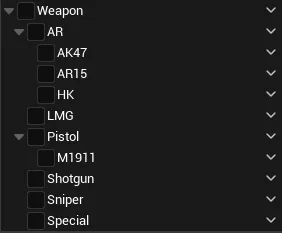
An example using Gameplay Tags for a weapon tagging system could be Weapon.Type.Name, for example Weapon.AR.AK47 where Weapon
is the root tag, AR is the parent tag and AK47 is the child tag, here we start to see the hierarchical power of using Gameplay Tags, this allows for a more structured and organised way to group and categorize your various tags and now we could check if the players weapon tag has a Weapon.AR tag without caring what type of AR weapon it is, but we also could compare exactly to see if it has the full desired tag of Weapon.AR.AK47.
Related Classes
The primary types you will interface with are FGameplayTag and FGameplayTagContainer.
FGameplayTag consists of:
FName TagName;- Single tag that can be queried and compared against other tags, it is just the FName of the actual tag, so"Weapon.AR.AK47"is the string our FName points to in the name pool.
FGameplayTagContainer (Should be preferred over you using a TArray<FGameplayTag> yourself) consists of:
TArray<FGameplayTag> GameplayTags;- Contains each individual tag that is stored in the container, this is not to say it looks something likeWeaponandARandAK47but ratherWeapon.AR.AK47is stored as a single tag, its parent tags are then stored in theParentTagsarray.TArray<FGameplayTag> ParentTags;- Contains all of the expanded parent tags (every ancestor) of the tags in the Gameplay Tags array, for example if we haveWeapon.AR.AK47thenParentTagswould containWeaponandWeapon.ARorHello.Worldwould contain justHello.
Unreal provides a generic interface called IGameplayTagAssetInterface which can be used to streamline the API between your classes but it is not required in any way.
How to add them to your project
Gameplay tags can be added to a project in a few different ways such as:
- Adding them to your Config folders
DefaultGameplayTags.inifile or any other.inifile that resides inConfig/Tagsfor exampleConfig/Tags/MySecondaryTags.ini
# Can be added via appending to the UGameplayTagsSettings class array like so
[/Script/GameplayTags.GameplayTagsSettings]
+GameplayTagList=(Tag="MyTag",DevComment="")

# or can be added directly to a GameplayTagsList like so
[/Script/GameplayTags.GameplayTagsList]
GameplayTagList=(Tag="MyTag",DevComment="")
GameplayTagList=(Tag="MyTag.MySubtag",DevComment="")- You can modify and edit tags within the editor’s GameplayTag Manager window from
ProjectSettings -> GameplayTags, here it can add and remove tags from aninifile for you without you needing to actually go in theinifile. - Using the
UE_DECLARE_GAMEPLAY_TAG_EXTERNandUE_DEFINE_GAMEPLAY_TAGmacros in your code to define new or existing tags without needing to query theUGameplayTagsManager::Get().RequestGameplayTag(). - Importing them via Data table assets that extend from
FGameplayTagTableRow.- This approach allows for managing the tags via the editors Gameplay Tags Manager window as well as modifying the table asset itself.
- To import tags from a Data Table, do the following in
ProjectSettings -> GameplayTags:- Click the Add Element (+) button next to Gameplay Tag Table List.
- Click the dropdown for the new index and select your Data Table.
Usage examples
Gameplay tags have the ability to query the hierarchy of other gameplay tags, this allows you to check for an exact match or a partial match, for example if you have a tag Weapon.AR.AK47 and you want to check if the weapon is of
an AR type, you could do so by checking if the Weapon.AR tag is contained within the Weapon.AR.AK47 tag.
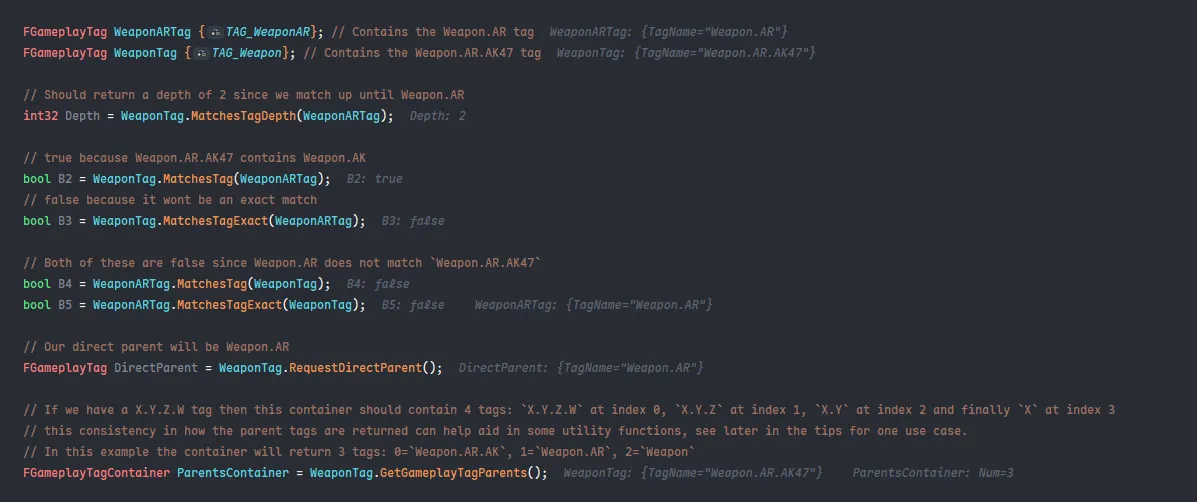
The demonstrated examples also exist in FGameplayTagContainer form to query multiple tags at once.
As your project grows you will notice that your Gameplay Tag drop downs can become quite cluttered, this can be significantly mitigated by filtering tags using the meta specifier like so:
UPROPERTY(meta = (Categories = "Tag1.Tag2.Tag3") )
and now only tags that are children of Tag3 and Tag3 itself will be shown in the dropdown, you can also add multiple categories to a filter like so:
UPROPERTY(meta = (Categories = "Weapon.AR,Weapon.SMG") )
and now only themselves and tags that are children of Weapon.AR or Weapon.SMG will be shown in the dropdown.
One gotcha though, if none of the categories in your filter actually exist (a typo or you renamed the tag at some point) the picker doesn’t warn you or anything, it just silently shows you every tag, so if your filter suddenly seems to be doing nothing that’s probably why.
- Do’s and Don’ts
Item.Apple.HealorAttachment.AK47.Magazineleads to broken hierarchies and can be difficult to work with, instead useItem.Heal.AppleorAttachment.Magazine.AK47, structure your tags in ways that make it easy to add sub tags to that aren’t going to break the hierarchy.- Be consistent with naming and plan out hierarchies before you start adding tags.
- Have tags only be as specific as they need to, global reusable tags are the key. For example imagine an FPS where you may need to constantly differentiate if something is for the first or third person model, take animation montages
for example, you could go with a naive approach of
Anim.Montage.Player.FirstPerson.AttackandAnim.Montage.Player.ThirdPerson.Attackbut now what about when we have other things like a view model skinCosmetic.Skin.FirstPerson.JerryandCosmetic.Skin.ThirdPerson.Jerry, we can see that we are starting to get a lot of duplication and what if we add a different kind of view likeSpectatororVehicle, this just becomes unmaintainable and grows out of control, instead you should be using something likeAnim.Montage.Player.AttackorCosmetic.Skin.Jerrywith a secondary tag on the objects that also specify some other contextually relevant information likeFirstPersonorThirdPersonorSpectatororVehicle, this applies to many cases with Gameplay Tags so don’t be so quick to add a new tag, think about how you can reuse and structure your tags in a way that is maintainable and scalable (this could also be a boolean or literal enum too, it was just to get the point across, it is easy to abuse Gameplay Tags but I personally don’t think Gameplay Tag abuse is the end of the world, just be aware.).
Native Gameplay Tags
Any C++ code that uses Gameplay Tags needs to add the “GameplayTags” module to their module’s Build.cs file like so:
PublicDependencyModuleNames.AddRange(new string[] { "Core", "CoreUObject", "Engine", "InputCore", "EnhancedInput", "GameplayTags"});// Should be declared in a header to share with other files and is used
// in conjunction with a DEFINE_GAMEPLAY_TAG macro to define a new GameplayTag
UE_DECLARE_GAMEPLAY_TAG_EXTERN(TagName);
// Used to define a new GameplayTag with a name and optionally a comment
UE_DEFINE_GAMEPLAY_TAG(TagName, Tag);
UE_DEFINE_GAMEPLAY_TAG_COMMENT(TagName, Tag, Comment);
// Used for defining tags in a cpp file that is not shared with other files
UE_DEFINE_GAMEPLAY_TAG_STATIC(TagName, Tag);These macros create a FNativeGameplayTag variable which is a wrapper for a FGameplayTag that is able to register with the global UGameplayTagsManager and then store the tag internally so you can access it whenever it is needed without
having to go through the UGameplayTagsManager::Get().RequestGameplayTag() every time which can be slow and unneeded since Unreal provides these FNativeGameplayTags in a convenient macro.
My personal preference of how I store Gameplay Tags from C++
My recommended way to store and use Gameplay Tags from C++ that aren’t already set/populated from the editor is to store them inside of some global namespace that can be shared and used between multiple files like so.
I use this as a way to reach into tags that I already define via my DefaultGameplayTags.ini file but there is nothing requiring you to define them inside of your ini file first but I
think it’s good practice to be explicit about what tags exist and do not from a single place.
// GlobalTags.h
namespace ProjectShortName::Tags
{
    namespace Stats
    {
        UE_DECLARE_GAMEPLAY_TAG_EXTERN(TAG_STAT);
        UE_DECLARE_GAMEPLAY_TAG_EXTERN(TAG_STAT_HEALTH);
        UE_DECLARE_GAMEPLAY_TAG_EXTERN(TAG_STAT_MANA);
    }

    namespace UI
    {
        UE_DECLARE_GAMEPLAY_TAG_EXTERN(TAG_UI);
        UE_DECLARE_GAMEPLAY_TAG_EXTERN(TAG_UI_MENU);
        UE_DECLARE_GAMEPLAY_TAG_EXTERN(TAG_UI_INTERACTION);
        UE_DECLARE_GAMEPLAY_TAG_EXTERN(TAG_UI_INTERACTION_BUTTON);
        UE_DECLARE_GAMEPLAY_TAG_EXTERN(TAG_UI_INTERACTION_SLIDER);
    }

    namespace Weapon
    {
        UE_DECLARE_GAMEPLAY_TAG_EXTERN(TAG_WEAPON);
        UE_DECLARE_GAMEPLAY_TAG_EXTERN(TAG_WEAPON_AR);
        UE_DECLARE_GAMEPLAY_TAG_EXTERN(TAG_WEAPON_AR_AK47);
        UE_DECLARE_GAMEPLAY_TAG_EXTERN(TAG_WEAPON_SMG);
        UE_DECLARE_GAMEPLAY_TAG_EXTERN(TAG_WEAPON_LMG);
    }
    // Etc
}

// The cpp file
namespace ProjectShortName::Tags
{
    namespace Stats
    {
        UE_DEFINE_GAMEPLAY_TAG(TAG_STAT, "Stat");
        UE_DEFINE_GAMEPLAY_TAG(TAG_STAT_HEALTH, "Stat.Health");
        UE_DEFINE_GAMEPLAY_TAG(TAG_STAT_MANA, "Stat.Mana");
    }

    namespace UI
    {
        UE_DEFINE_GAMEPLAY_TAG(TAG_UI, "UI");
        UE_DEFINE_GAMEPLAY_TAG(TAG_UI_MENU, "UI.Menu");
        UE_DEFINE_GAMEPLAY_TAG(TAG_UI_INTERACTION, "UI.Interaction");
        UE_DEFINE_GAMEPLAY_TAG(TAG_UI_INTERACTION_BUTTON, "UI.Interaction.Button");
        UE_DEFINE_GAMEPLAY_TAG(TAG_UI_INTERACTION_SLIDER, "UI.Interaction.Slider");
    }

    namespace Weapon
    {
        UE_DEFINE_GAMEPLAY_TAG(TAG_WEAPON, "Weapon");
        UE_DEFINE_GAMEPLAY_TAG(TAG_WEAPON_AR, "Weapon.AR");
        UE_DEFINE_GAMEPLAY_TAG(TAG_WEAPON_AR_AK47, "Weapon.AR.AK47");
        UE_DEFINE_GAMEPLAY_TAG(TAG_WEAPON_SMG, "Weapon.SMG");
        UE_DEFINE_GAMEPLAY_TAG(TAG_WEAPON_LMG, "Weapon.LMG");
    }
    // Etc
}
Replication Information
Gameplay Tags can replicate a lot more efficiently over the network compared to FNames (which replicate via their entire string), but only if you have Fast Replication (or Dynamic Replication under Iris) enabled, otherwise a tag just replicates as its FName plus a method bit or two.
Gameplay Tags must be statically/editor time defined (meaning not at runtime) or at least added into the UGameplayTagsManager before the engine has finished initializing, this can play a vital role in ensuring that the tags are mapped and replicated correctly over the network and we do not have any out of sync tags between clients.
Unreal provides a few configuration options found in ProjectSettings -> GameplayTags to help out with replication and efficiency of tags, these are:
Fast Replication- Off by default, if enabled cannot useDynamic Replicationand means that tags are replicated via a global index and all clients and server must agree on the mapping of tag to index, this is the most efficient way to replicate tags but also the most restrictive.Dynamic Replication- If enabled is supposed to be able to replicate tags between clients and server even if locally they have different tag dictionaries, the client and server come to agreement of a cheaper index to use for the tag rather than its string representation, this is not as efficient asFast Replicationbut allows for more flexibility, it also requires Iris to be enabled in your project which was still experimental when I wrote this (5.5) and is Beta in recent versions, so it’s more of an option now than it was but just keep that in mind.CommonlyReplicatedTags- An array of FNames that represent our Gameplay Tags that are commonly replicated between clients, this is then converted to an array of FGameplayTags upon startup and the comment for that array reads as"These tags are given lower indices to ensure they replicate in the first bit segment."which just ensures the most common tags are the cheapest to send, more information on bit segments below.GameplayTags.PrintReplicationFrequencyReportis a super useful console command that can aid in letting you know which tags you replicate the most and if they should be added into yourCommonlyReplicatedTagsarray, it will give you a text print out in the console to copy paste in yourinifile, it’s super convenient. DO NOT OVERLOOK THIS.
NumBitsForContainerSize- The number of bits to use for the container size, this should be based on how large your containers tend to be, it’s a simple2^n -1calculation where n is your bit count, the default is 6 bits which allows for a maximum of(2^6) -1 = 63tags to be stored in the container.NetIndexFirstBitSegment- Needs a little more explaining in my opinion. This is asking us how many bits we should minimally ALWAYS send, and if we need to replicate an index that is above that then we need to pay the remaining cost of our maximum possible tag count. So a simple example would be imagine we have 255 tags in our game as a whole, this number can be represented in8 bits, but if 95% of the time we only used the lower 32 Gameplay Tag indices registered in our global tag map then we would be paying an extra3 bitsevery single time for little to no reason, so we could instead set ourNetIndexFirstBitSegmentto5and then we would only pay5 bitsas a minimum every time and that would cover the first 32 tags (Unreal defaults to 16, which for any project with under ~65k tags means everything fits in the first segment and there’s no segmentation at all, so you need to lower it to actually get any benefit) and then if we needed to go above that we would pay the remaining cost of the end/remaining bit segment which is a hard set value ofMaxNumberOfBitsNeededToRepresentOurHighestIndex - NetIndexFirstBitSegment, so in our case we have a max size of 255 which means8 bitsand we are sending aNetIndexFirstBitSegmentof5so we would pay3 bitsfor the remaining 223 tags, this is a slightly simplified example but I hope it helps to understand the concept a little better.
Each tag also sends a 1 bit replication method flag first (M below), then the first segment carries the low bits of the index, then a “more” bit, and only if that’s set do the remaining high bits follow:
- CommonTag    (index 23)     -> Binary: M|10111|0        (1 method bit + 5 bits first segment + 1 "more" bit = 7 bits)
- NonCommonTag (index 245)    -> Binary: M|10101|1|111    (1 method bit + 5 low bits + 1 "more" bit + 3 remaining high bits = 10 bits)
TLDR/Recap
- Hierarchical tags that are separated by a
.character. - Is just internally a wrapper for an FName but is backed by a much larger system that allows for more structured and organised way to group and categorize your various tags.
- Comparing Gameplay Tags via the equality operator
==will compare their FNames which are super cheap.- Doing a
MatchesTagor any of the other similar functions come with a slightly higher cost but are still very cheap compared to raw string comparisons.
- Doing a
- Can be used to represent names or identifiers, contextual state information, attributes of something and many many other things.
- Used all over the engine by many plugins and systems.
- Does NOT require GAS to be used.
- Can be used to enforce a naming convention or remove any chance of a typo.
- Can filter tags using the
UPROPERTY(meta = (Categories = "Tag1.Tag2.Tag3") )to only show tags that are children ofTag3andTag3itself in the dropdown. - Can be added to your project via
DefaultGameplayTags.inior the editor. - C++ should use the
UE_DECLARE_GAMEPLAY_TAG_EXTERNandUE_DEFINE_GAMEPLAY_TAGmacros to define new tags. - Replicates more efficiently over the network compared to FNames, but only with
Fast Replication(orDynamic Replicationwith Iris) turned on, it’s off by default. - Max of 65,534 tags in a project when using fast replication, the limit comes from the fast replication net index and implicit parent tags (like
WeaponandWeapon.ARfromWeapon.AR.AK47) count towards it too. - Lots of possible optimizations and configurations in
ProjectSettings -> GameplayTagsto help with replication and efficiency of tags. GameplayTags.PrintReplicationFrequencyReportis a super useful console command that can aid in letting you know which tags you replicate the most and if they should be added into yourCommonlyReplicatedTagsarray.NetIndexFirstBitSegmentis asking us how many bits we should minimally ALWAYS send, and if we need to replicate an index that is above that, then we need to pay the remaining cost of our maximum possible tag count.
Conclusion
Hopefully this has been a helpful and informative look at FNames and Gameplay Tags, they are both incredibly useful and I couldn’t imagine working without them.
Now get out there and start using them!